DocFetcher Pro on Windows: Only two launcher executables: On Windows, DocFetcher comes with the default DocFetcher.exe file for launching the program, and an assortment of alternative DocFetcher-*.exe files under the misc folder to launch the program with different memory limits.
In DocFetcher Pro, this dizzying array of alternative launchers is gone, and instead there are only two: DocFetcherPro.exe and DocFetcherPro-Console.exe.
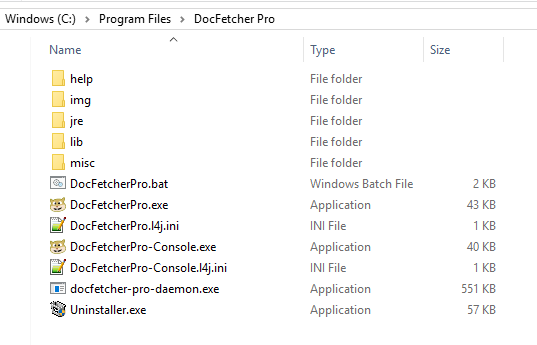
The launcher DocFetcherPro.exe starts the program without an attached console window and is what you would normally use. The launcher DocFetcherPro-Console.exe runs the program with an attached console window. This second launcher is useful for debugging and/or when you need to run the program from the command line for some reason, e.g., when running the program with the --update-indexes argument to force updating all your indexes.
Moreover, each of DocFetcher Pro's exe launchers is accompanied by an ini file, named DocFetcherPro.l4j.ini and DocFetcherPro-Console.l4j.ini, respectively. You can edit these ini files with a text editor to set the memory limit of the respective exe launcher.
Finally, the DocFetcher.bat launcher from DocFetcher is present in DocFetcher Pro as well.
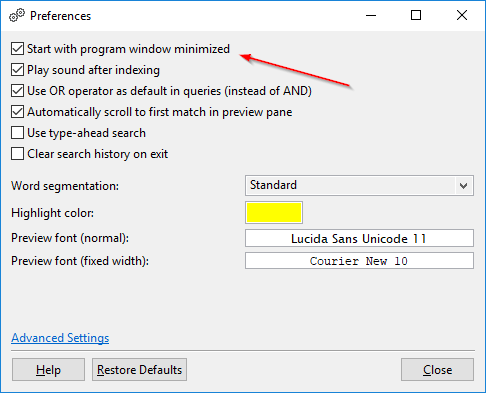
DocFetcher Pro: Start the program minimized: In the preferences of DocFetcher Pro, you'll find a box "Start with program window minimized". As the description says, checking this box will cause the program window to start out minimized when the program is opened. This may be desirable if you set up the program to be started automatically when booting up the operating system.